
Updated 8/4/2026.
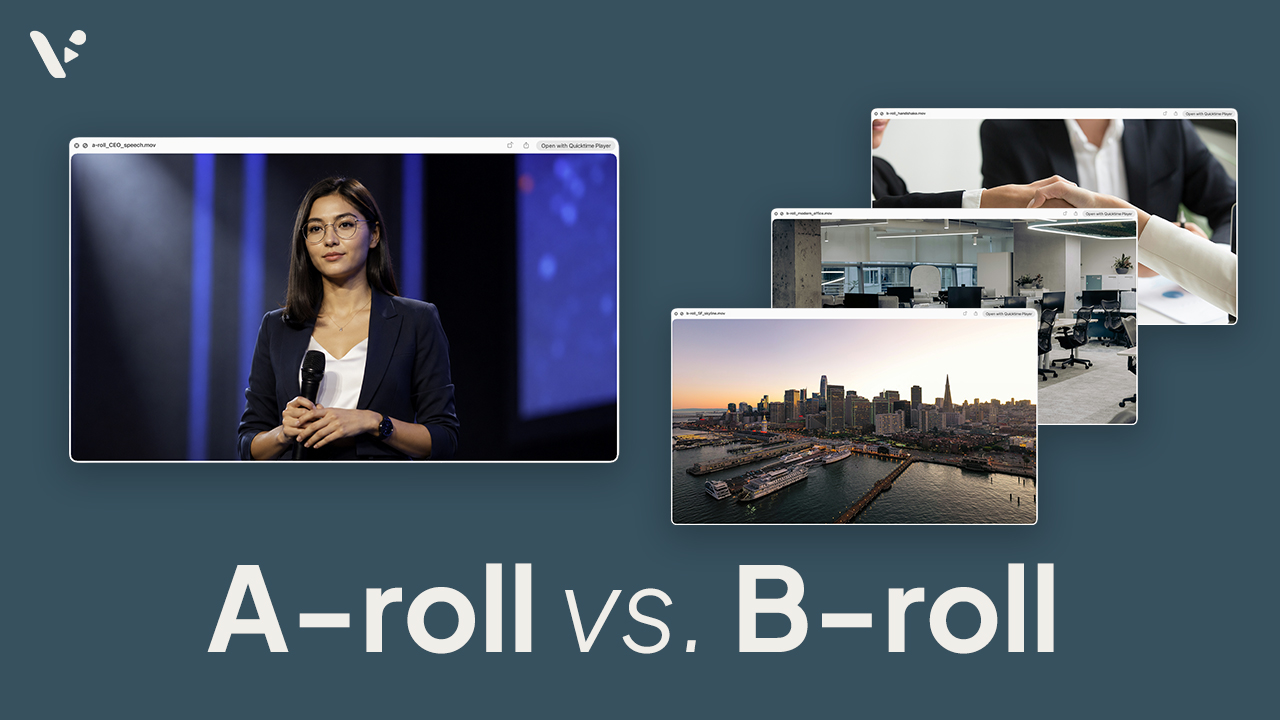
Quick answer: B-roll is supporting footage used alongside a video’s main footage, or A-roll. It can show what a speaker describes, establish context, or cover an edit. You can record it, license stock, reuse owned footage, or generate it with AI.
What is b-roll footage?
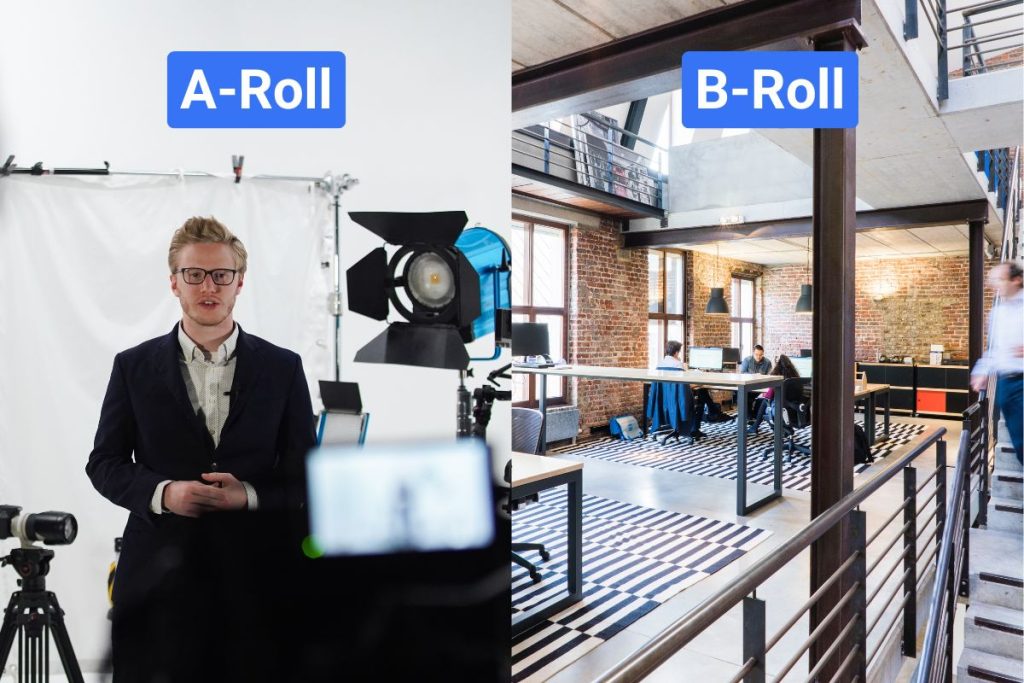
Whether a shot counts as A-roll or b-roll depends on its job in the edit. A product demonstration may be the A-roll in a tutorial. Put the same demonstration under an interview with the product manager, and it becomes b-roll supporting the interview.
The term comes from film workflows that used a second roll for supplemental shots and cutaways. Digital editors no longer need two physical rolls, but the names remain. Adobe’s guide to b-roll explains the history.
B-roll vs. A-roll: What’s the difference?
| Footage | Main job | Common examples |
|---|---|---|
| A-roll | Carries the main story, message, or action | Interviews, presenters, demonstrations, dialogue |
| B-roll | Supports or illustrates the A-roll | Product close-ups, establishing shots, process footage, reaction shots |
Why editors use b-roll
Suppose an interviewee gives a strong answer but pauses, repeats a sentence, and wanders into an unrelated detail. The editor can remove those parts, but cutting the remaining pieces together may make the person’s head or hands jump between positions. A relevant cutaway placed over that edit hides the visual break while the cleaned-up audio continues.
B-roll can also show a process, identify a location, or reveal a product detail. Cutting back to the interviewee for an important line can make that moment feel more direct.
Director and cinematographer Hiroshi Hara describes this practical use in Adobe’s b-roll guide: b-roll lets editors shorten soundbites without getting stuck with a distracting jump cut.
What makes good b-roll footage?
Try four concrete checks:
- Does the shot match the exact point? Footage of people studying a dashboard supports a line about reviewing campaign results. A random office exterior doesn’t.
- Can viewers read it quickly? The subject and action should be clear without a long explanation. Text, controls, and small product details must remain legible on a phone.
- Does it add information? A cutaway should show something the A-roll can’t, such as the actual workspace, product behavior, or result.
- Can an editor use it cleanly? The shot needs stable framing, enough time before and after the action, and no distracting screens, logos, or continuity errors.
Film editor and post-production writer Jonny Elwyn suggests a similar test in his Frame.io editing guide: review whether each cutaway adds information or merely covers a weakness in the edit. Pretty footage can still be unnecessary.
How to shoot usable b-roll
Plan from the script or interview
Mark the people, places, objects, and actions mentioned in the A-roll. Turn them into a short shot list. If the speaker explains how an order moves through a warehouse, plan the sequence from arrival through packing and shipment instead of collecting unrelated warehouse shots.
Give the editor real choices
For an important action, record a wide view that establishes the setting, a medium view of the person working, and a close-up of the relevant hands, screen, or tool. Change angles only when the new view reveals something useful.
Hold steady shots longer than you expect to use. Director and filmmaker Mike Leonard recommends counting to ten while filming b-roll because beginners often stop just before a shot becomes useful. You don’t need to show all ten seconds in the final edit. The extra footage gives the editor clean handles before and after the action.
Frame vertical footage for a phone
Shoot in 9:16 for TikTok, Reels, or Shorts. Keep important action away from the edges, where captions and controls can cover it. Let comprehension set the shot length: a simple movement may read quickly, while a dashboard needs longer.
Editing b-roll into a video
Start by building the spoken story. In an interview about editing Planetary Defenders, NASA editor Jessie Wilde says she organizes interviews, b-roll, sequences, and graphics separately, then groups interviews by topic.
Once the A-roll or narration works on its own, pull a smaller set of b-roll selects. Elwyn keeps these in a separate timeline so he can find them without searching every raw clip.
Place those selects over the relevant part of the A-roll. Time each cutaway to the word or action it supports. If the speaker says, “We review every request by hand,” show the review process as that phrase begins. Don’t wait several seconds and make viewers work out the connection.
Most b-roll replaces the picture, not the soundtrack. Keep the interview or narration underneath it. Mix in the b-roll’s own sound when it adds context or marks a transition. Otherwise, lower or mute it so it doesn’t compete with the speaker.
In Visla’s scene-based editor, each scene can carry b-roll while its voiceover or other audio continues. You can replace footage with free, premium, or Private Stock, adjust the scene length, cut or merge scenes, and scale the image. You can also loop a short clip, but check that the repeated action doesn’t create an obvious jump.
Then make two review passes:
- Watch the b-roll sequence without concentrating on the dialogue. Do the shots form a readable process or progression, or do they jump randomly between subjects and angles?
- Watch it with the dialogue. Does each image clarify, document, or deepen the line underneath it?
If a shot fails both tests, remove it. The goal isn’t to keep the screen changing. It’s to control what the viewer sees and when.
Where can you find b-roll footage?
| Source | Best when | Main limitation |
|---|---|---|
| Original footage | Accuracy and direct documentation matter | Requires a shoot |
| Stock footage | You need realistic coverage quickly | May only approximately fit |
| Internal footage | Your team already owns a relevant clip | Requires an organized library |
| AI-generated footage | You need an unusual or highly specific combination of details | May require several attempts and careful review |
Shoot original footage
Use original b-roll to document real products, people, workplaces, demonstrations, and events. Choose it when viewers need to see what your product does or what took place at a real location.
Use free or premium stock footage
Stock makes sense when a suitable real-world clip already exists and filming it would cost more. Visla’s free stock video library covers common subjects. The Premium Video Library adds creative and editorial footage from Storyblocks and Getty Images.
Reuse footage your organization owns
Past product shoots, event recordings, office footage, and customer videos can all become b-roll. Visla Private Stock keeps this material in a shared, searchable library and automatically tags uploaded footage.
Generate it
AI video is useful when search terms can’t locate the combination you need, such as a specific camera move in an unusual setting. It doesn’t guarantee the exact shot you imagined. Expect to revise the prompt, generate alternatives, and inspect the result.
Generate AI b-roll in Visla
Describe one clear action per shot. Include the subject, setting, framing, camera movement, lighting, and any sound you need. Our guide to prompting Veo 3 and Veo 3.1 applies Google’s framework of cinematography, subject, action, context, style, and audio. Google’s official Veo 3.1 prompting guide provides more detail.
For example:
Close-up of a project manager typing on her laptop in her office, soft daylight, slow push-in, modern office, shallow depth of field.
Select the duration and aspect ratio, generate the clip, and review the result before using it. Veo 3.1 in Visla supports clips up to eight seconds.
Keep multiple generated shots consistent with AI Director Mode
One generated cutaway may work on its own. A sequence is harder. The product, character, office, lighting, or visual style can change between prompts.
Visla’s AI Director Mode plans the video as a storyboard before generating motion. You review the proposed recurring elements, scene images, and prompts, then decide which scenes become video clips.
For b-roll, that could mean keeping the same product and office recognizable across an establishing shot, close-up, and demonstration. The workflow improves continuity, but every generated scene still needs human review. See the full guide to generating AI video clips in AI Director Mode for the complete process.
Check licenses and synthetic footage before publishing
“Royalty-free” doesn’t mean restriction-free. Confirm that a stock license covers commercial use and save the license or purchase record. Editorial footage usually can’t be used in advertising or other promotional content. Visla’s Premium Video Library, for example, distinguishes between creative footage licensed for commercial use and editorial footage limited to noncommercial contexts.
Don’t assume fair use makes an unlicensed clip safe for marketing. The U.S. Copyright Office’s fair use guide explains why there’s no universal safe length or percentage.
Review AI-generated footage for incorrect text, warped logos, distorted bodies, impossible interactions, and inaccurate product behavior. Don’t present a synthetic person or event as real. Platform rules vary, but YouTube requires disclosure for realistic altered or synthetic content that could mislead viewers about a real person, place, scene, or event.
FAQ
There’s no universal ratio, but most teams should capture more coverage than they expect to use. For each important topic, record at least one wide shot, one medium shot, and several close-ups or process details. Hold each shot long enough to provide clean handles, and repeat any critical action from more than one angle. The goal isn’t a fixed number of minutes; it’s enough specific coverage to illustrate every major point without repeatedly using the same shot.
Yes, when it reinforces information instead of merely decorating the screen. Showing the exact control, product behavior, location, or physical action being discussed can reduce how much viewers must infer from narration alone. Keep captions readable, avoid unnecessarily rapid cuts, and don’t rely on color or imagery to communicate information that never appears in the audio or text. For important visual details, describe them in the narration or provide equivalent on-screen text so viewers who can’t see the footage still receive the message.
Store b-roll with descriptive filenames, searchable tags, and basic licensing information rather than leaving it in folders named only after shoot dates. Tag the subject, action, location, people shown, orientation, campaign, and any restrictions on use. Keep the original master file, but also create approved selects or lightweight preview files so editors can browse footage quickly. A well-maintained library turns each shoot into a reusable asset and reduces the chance that teams buy or film footage they already own.

May Horiuchi
May is a Content Specialist and AI Expert for Visla. She is an in-house expert on anything Visla and loves testing out different AI tools to figure out which ones are actually helpful and useful for content creators, businesses, and organizations.